How to set your File Browser username and password
File Browser is where you see everything OpenPlant has saved from your WhatsApp: chats, photos, videos, voice notes and documents. Because it holds your business records, the first thing to do is change your password.
1. Open File Browser
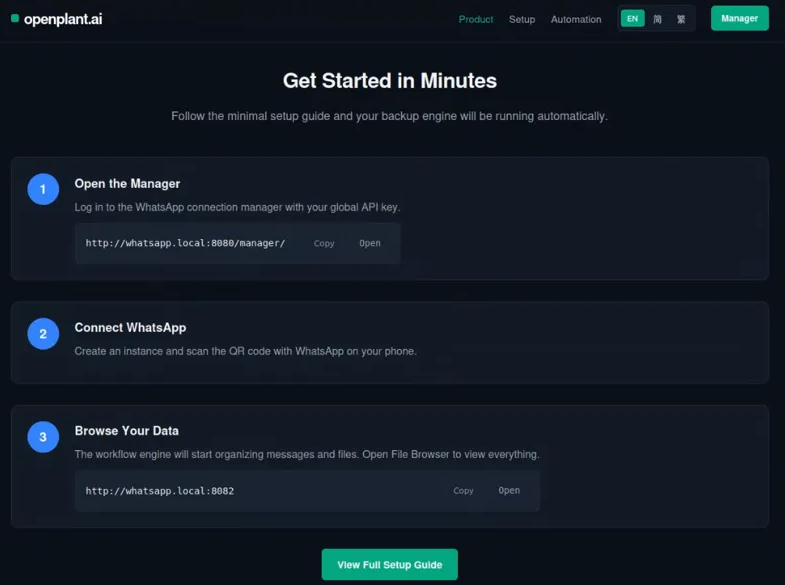
On a computer connected to the same network as your OpenPlant box, open whatsapp.local:3000 and go to Step 3: Browse Your Data. Click Open, or go straight to whatsapp.local:8082.
2. Log in
Log in with the username and password that came with your box. You will see your folders: audio, documents, images and stickers.

3. Change your password
Click the gear icon next to your name, then User Management. Click the pencil icon next to your user.
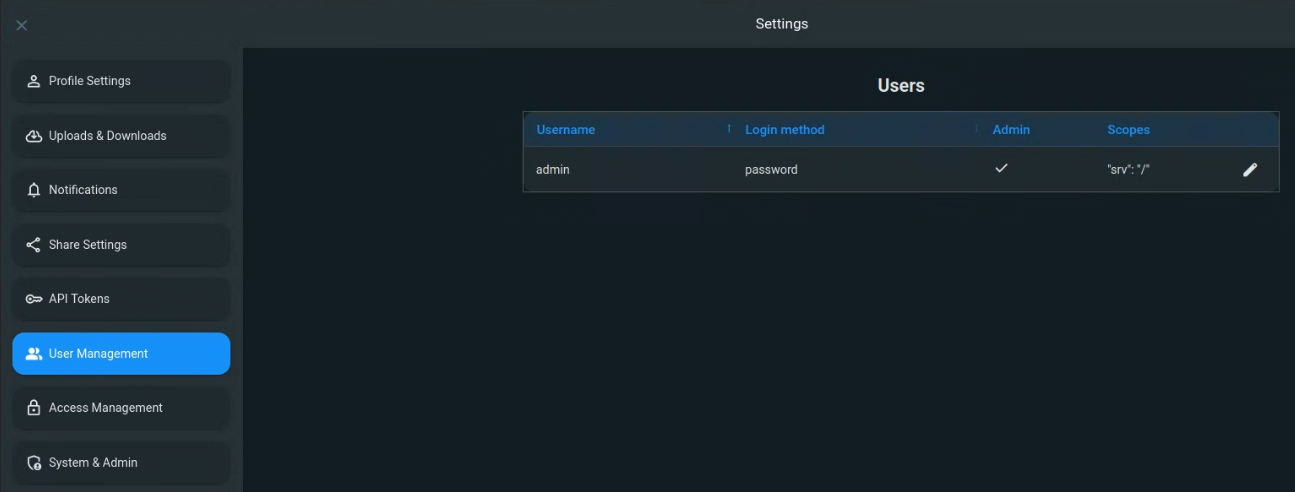
Type your new password in both Password fields and click Update. Use a long password (12 characters or more), and don’t reuse a password from another account. For extra security you can also turn on Two-Factor Authentication here.
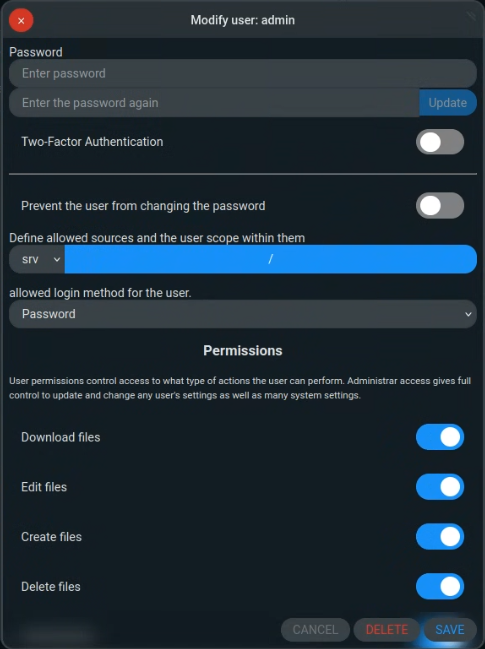
4. Add a login for each staff member (optional)
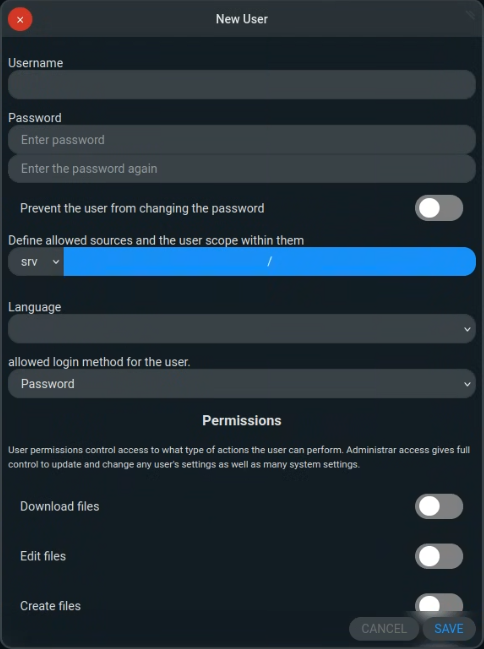
In User Management, click New. Give each person their own username and password. All permissions start switched off, so turn on only what they need (for example, Download files), then click Save. If someone leaves, delete their user and their access stops straight away, while the records stay in your office.
Tips
Keep your password somewhere safe. File Browser only works inside your office network.
Need help? Email [email protected].